Jan 30, 2017

How to remove the blank space at the top of your blog

You always like your blog to be stylish. You like your blog to  look a more professional type. For this you wish your navigation bar (Navbar) to be hidden. Fortunately blogger provide us the option to hide or unhide the navigation bar.
But,  after removing or hiding the navbar a blank space is created on top of your blog (Fig 1).
Fig 1
It creates a negative impact on your blog design. That is why removing this blank space from your blog top is all important.

Today i will show you how to remove the blank space created after removing navbar in your blog.


Note:- First take a backup of your blog template to avoid any mishap. if you are not sure about it Read my post on How to download backup of template in blogger


Follow the steps below-

Step 1- Log in to your blogger account.

Step 2- Click on the Template option from the left pane as shown in Fig 2.
Fig 2

Step 3- Click on Edit HTML button as shown in Fig 3.

Fig 3

Step 4- Click anywhere in the HTML Code Box, then press Ctrl + F to enable search box as shown in Fig 4.

Fig 4

Step 5- Copy or type </head> in the search box and press Enter. 

Step 6- Now copy and paste the below code just before the </head>.


<style type='text/css'>

.content-inner 
margin-top: -40px !important; 
}

</style>


Step 7- Click "Save Template" button as shown in Fig 5.

Fig 5


Done...!
Now view your blog and see the magic!

If you have any questions, Leave a comment. 
☺☺☺☺

Read More »

How can i hide navbar in blogger


You always like your blog to be stylish. You like your blog to  look a more professional type. For this you wish your navigation bar (Navbar) to be hidden. Fortunately blogger provide us the option to hide or unhide the navigation bar, 

Today I will tell you about How to hide navigation bar in blogger.

Follow the steps below-


Step 1:- Login to Blogger and go to Layout. 


Step 2:- On Navbar gadget, click on Edit.


Step 3:-A new window will pop up. At the bottom click on "off" button.


Step 4:- Now click "Save" to save the gadget.

Done...!!!!!
Congratulations... The Navbar is disappeared from your blog now.

If you liked this post,Or have any questions, Leave a comment below

Read More »

Jan 28, 2017

How to block websites in a PC


How to block websites in a PC
While internet came with an ocean of good things, it can turn really bad in some cases like your children getting access to unwanted websites accidentally or may be deliberately.


If you are looking to Block Websites on your PC, then here is the simplest method to block it. You don't have to download any kind of software or so.


Follow the steps below to block websites in a PC:

Step 1: Go to My computer>C>Windows>System32>Drivers>etc.


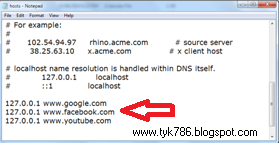
Step 2: Open "hosts" file in notepad as shown in Figure1 below.
www.tyk786.blogspot.com
Figure 1


Step 3: At the end of the notepad enter 127.0.0.1 then give a space and enter the URL of the website which you want to block. You can block as many websites as you want. Example
127.0.0.1 www.twitter.com
127.0.0.1 www.facebook.com
127.0.0.1 www.youtube.com
127.0.0.1 www.yahoo.com  (See figure2)
www.tyk786.blogspot.com
Figure2
Step 4: Save the file.

Congratulations......

All the websites which you entered in the file are now blocked. If you want to unblock any of these websites, just delete its address from the host file.

Done...!!!


Any questions? Leave a comment....!!!
Happy Learning :)

Read More »

Download card works crack free

CardWorks (Business Card Software) helps you design and print your own business cards. Creating your own business cards is easy with a wide range of free business card templates. Supports all standard sizes of business cards. Print business cards yourself or export your business card files and have them professionally printed. 
 Popular features include:
  1. Large selection of business card templates to choose from. 
  2. Free additional template options available for download. 
  3. Single or double-sided card design options. 
  4. Names and addresses can be stored for multiple businesses. 
  5. Include images, logo, self-picture, etc.,with multiple formats supported (gif, jpg, png and bmp). 
Export high resolution PDFs to take to your local printer.

Free version has watermark on all business cards. To remove the watermark you must upgrade to the paid version.


Download CardWorks here

Buy this software from the developers so that they can make more good software for us. 
☺☺☺☺
Read More »

Jan 27, 2017

How to add popular posts widget in blogger

Popular Posts widget is a must have for a blog or  website An eye-catching popular post widget not only increases the beauty and style of your website/Blog but it will impress your readers also. This will also increase the chance to get more clicks in your blog. today we will learn about how to add a Popular Posts widget in your blog. Adding and customizing popular post is very easy. 
Just follow the steps below-

Step 1- Login to your Blogger account and go to Layout as shown in Fig 1.
Fig 1

Step 2-  Click "Add a gadget" as shown in fig 2 below.
Fig 2
Step 3- A pop up box will open, select "Popular posts" widget from it as shown in Fig3 below.
Fig 3
Step 4- Now configure your Popular posts Widget as shown in fig 4 below.

Fig 4
Customization:-
1- Name you like to display in your  blog for popular posts widget. Rename it according to your taste.
2- The time period you want blogger to choose posts from. You can choose any but All time is recommended.

3- How many posts you like to display in popular posts widget (Max 10). Check Image thumbnail to show images.

4Save your popular posts Gadget.

Step 4- At last click Save arrangement at top right corner as in fig 5
Fig 5
Hurray.....! You have successfully added popular posts widget to your blog.
Congratulations.
HAPPY LEARNING ☺☺☺


Read More »

Jan 19, 2017

Muslim Way of Life

 Muslim Way of Life is a book by Maulana Ashraf Ali Thanwi. In this book Maulana Ashraf Ali Thanwi has penned down about how a Muslim lives his life.
We have managed to bring this book to you for free. Support us for more good work. Share the word

Download links for this book are below. Download for FREE

Read More »

The Religion Of Islam

The Religion Of Islam is a very nice book to understand Islam and its fundamentals. Download to know and understand Islam.

Wehave managed to bring this book to you for free. Support us for more good work. Share the word
Download links for this book are below. Download for FREE


Read More »

Jan 18, 2017

A brief illustrated guide towards understanding Islam

A brief illustrated guide towards understanding Islam is a guide for non-Muslims who would like to understand Islam, Muslims (Moslems), and the Holy Quran (Koran).  It is rich in information, references, bibliography, and illustrations.  It has been reviewed and edited by many professors and well-educated people.  It is brief and simple to read, yet contains much scientific knowledge.  It contains the whole book, A Brief Illustrated Guide to Understanding Islam, and more.

We have managed to bring this book to you for free. Support us for more good work. Share the word

Download links for this book are below. Download for FREE


Read More »

Jan 15, 2017

Ccleaner

Ccleaner is a free system optimization tool which can be used to remove unused files and speed up your PC. It can clean internet history from browsers and remove temporary stuff from other applications. It has an inbuilt registry cleaner which finds and fixes all the registry errors.


Ccleaner has an easy interface. To get started with the service download and install Ccleaner on your PC. Run the application by double clicking on the program icon.

Ccleaner has four sections in the left hand sidebar, namely:

  1. Cleaner
  2. Registry
  3. Tools
  4. Options
Each of these sections has some unique functions:
Cleaner – It mainly removes temporary files from the system. It also removes all the browsing details from browsers of your PC.
Registry – It checks and fixes problems, if any, inside your system registry.
Tools – You can manage installed programs and applications in the PC. You can uninstall any program directly from the Ccleaner interface. Also, remove any unwanted system restore points and programs in the startup list.
Options – Lets you choose your preferences for running Ccleaner.


If you like this post or have any questions, Please leave a comment below :)

DISCLAIMER:- Ccleaner is a product developed by Piriform. This site is not directly affiliated with Piriform. All trademarks, registered trademarks, product names and company names or logos mentioned herein are the property of their respective owners. Our download manager distributes the original unmodified software, obtained directly from Piriform website, and does not modify it in any way.


Read More »

Dec 18, 2016

How to Block Websites in Mozilla Firefox


www.tariqyousuf.tk
While internet came with an ocean of good things, it can turn really bad in some cases like your children getting access to unwanted websites accidentally or may be deliberately. 

To Block Websites on Firefox is same as to block websites in Chrome. In Firefox also there is no particular setting to block websites. In Firefox also you have to use an extension just like in Chrome.
Follow the steps below:-


Step 1: Open Mozilla Firefox.
Step 2: From top right click on "Add-ons".(Figure 1)
www.tariqyousuf.tk
Figure 1


Step 3: In top left click on Get Add-ons(Figure 2)
www.tariqyousuf.tk
Figure 2
Step 4: In top right search box, search for "block site". (Figure 3)
www.tariqyousuf.tk
Figure 3

Step 5: Install the "Block Site" add-on by clicking “Install” button. (Figure 4)
www.tariqyousuf.tk
Figure 4

Step 6: Restart your browser.

Step 7: After installing, go to Extensions. Click on  options button.A new window will pop up. (Figure 5)

www.tariqyousuf.tk
Figure 5


Step 8: Click on “add” Button. (Figure 6)

www.tariqyousuf.tk
Figure 6


Another window will pop up.

Step 9: Now enter the website you want to block in location field. (Figure 7)
                       
www.tariqyousuf.tk
Figure 7

Congratulations...............
All Done…!!! You have successfully blocked the website.


Any Questions? Leave a comment....!!!
Read More »

How to make a bootable USB drive

www.tariqyousuf.tk
Installing windows from a bootable pen drive/ USB drive is far more easy than doing the same with a CD or DVD. For the said purpose the most important thing you need is a BOOTABLE PEN DRIVE.
In this post i will guide you through the whole process of making a pen drive bootable for installing windows on a computer system.

Follow the steps below:-


Step1:- Insert your pen drive in to USB port (make sure you don't have any personal data in it as we will format the drive).


Step2:- Open Command Prompt and run it as an Administrator. (Type cmd in search bar, Right-click on the displayed result and select "Run as Administrator".) Example Fig 1

www.tariqyousuf.tk
Fig1


Step 3:- Enter the command diskpart to open the disk management utility. Example Fig 2

www.tariqyousuf.tk
Fig2


Step 4:- Enter the command list disk to display the list of all the drives connected to your computer including your USB/Pen drive. Note down the number of your pen/USB drive.(in my case its 2). Example Fig 3

www.tariqyousuf.tk
Fig3


Step 5:- Enter the command select disk 2 to select your USB drive (Here 2 is the number of USB drive. Change it if your pen drive bears any other number.) Example Fig 4

www.tariqyousuf.tk
Fig4


Step 6:- Enter the command clean to clean the flash drive. It will clean your disk and erase all data. Example Fig 5

www.tariqyousuf.tk
Fig5


Step 7:- Enter the command create partition primary to create a bootable partition on your disk. Example Fig 6

www.tariqyousuf.tk
Fig6


Step 8:- Enter the command Select partition 1 to select the new partition you created on your disk. Example Fig 7
www.tariqyousuf.tk
Fig7

Step 9:- Enter the command active to activate the new partition you created on your disk. 
Example Fig 8


www.tariqyousuf.tk
Fig8
                                        
Step 10:- Enter the command format fs=fat32 to format the USB drive. Sit back and relax as it will take some time depending upon the size of your disk. wait till it is 100%. Example Fig 9
www.tariqyousuf.tk
Fig9

Step 11:- Enter the command assign to give your USB drive a drive letter. Example Fig 10

www.tariqyousuf.tk
Fig10

Step 12:- Enter the command exit to exit from the command prompt programme. Example Fig 11

www.tariqyousuf.tk
Fig11


Step 13:- Now copy the operating system files to your pen drive. Copy any drivers you need during the windows installation.


Congratulations. . . . . . . . . .

Thats it. You are all done. Your USB Drive is now bootable. Ready to install windows.


Any questions? Leave a comment....!!
Happy Learning..... :)
Read More »
Blogger Widgets