Aug 17, 2018

How to Install Microsoft office Picture Manager


Microsoft Office Picture Manager is a raster graphics editor introduced in Microsoft Office 2003 and included up to Office 2010. It is the replacement to Microsoft Photo Editor, which itself was introduced in Office 97 and included up to Office XP. 


Microsoft Office Picture Manager is a must have tool for windows. If this tool is not included in your MS Office package, you can still install it.

To Install Microsoft Office Picture Manager Follow the steps below:-

Step1: Download SharePoint Designer 2007.

Step2: In the Choose the download you want page, select SharePointDesigner.exe and click Next.

Step3: In the message (at the bottom of your screen) that asks if you want to Run or Save the .exe file, click Run.

Step4: Accept the license terms and click Continue.

Step5: On the Choose the installation you want page, click Customize.

Step6: Expand Microsoft Office SharePoint Designer and select Microsoft Office Picture Manager.

Step7: Click the drop-down arrow next to Microsoft Office Picture Manager and click Run from my computer.

Step8: Click Install Now.

All Done......!! You have successfully added MS Office Picture manager to your Computer.

Any Questions? Leave a comment.
Happy Learning.....!!!
Read More »

Aug 11, 2018

How to Turn Windows features ON or OFF in Windows 7

 Microsoft windows features is a feature that allows the system adminitrator turn the features of the operating system on or off.
In simple words, a computer user do not need all the features available in Microsoft Windows. For example,One user like playing games and he may turn this feature on and at the same time another user is not interested in games so he will turn this feature off.
Today in this post we will see how these windows features are turn On or Off.
Follow the steps given below:-


Step 1: Click the Start button as shown in Pic 1.
Pic 1


Step 2: Click Control Panel as shown in Pic 2.


Pic 2


 Step 3: Click Programs shown in Pic 3
Pic 3


Step 4: Click Turn Windows features on or off as shown in Pic 4.

Pic 4


Step 5: To turn a Windows feature on, select the check box next to the feature and for turning a feature off uncheck the box next to it as shown in Pic5.

Pic 5


Step 6: After you are done press Ok at the right bottom of the window as shown in Pic 6.


Pic 6

You are Done...!!!


Any questions? Leave a comment....!!
Happy Learning..... :)

Read More »

Aug 10, 2018

How to choose which programs load at startup in windows 7

Some times we need to fast up our PC. We know lesser the programs load at startup, Faster the speed of PC. In this post i will discuss how can we choose which programs to load at startup and which programs don't.
For this purpose we need to open System Configuration Utility (Windows 7).

Follow these steps:-
Step1- Click start button and in the box type msconfig and hit Enter as shown in Pic 1.

Pic 1


Step2- A new window will pop up,Click the Startup tab as shown in Pic 2.

Pic 2


Step3- Now Uncheck the items you do not want to launch on startup as shown in Pic 3.

Pic 3


Step4- When you have finished making your selections, click OK as shown in Pic 4.

Pic 4

Done...........!!!!. 

Any questions? Kindly leave a comment....!!!

Happy Learning...!!!
Read More »

Apr 17, 2017

How to make keyboard key buttons in blogger posts

Making keyboard buttons appear in blogger posts text is as simple as cutting butter with a sharp blade in summers ☺.
It is actually all about a simple html tag. Yes only one html tag makes all that magic happen. Here is the html tag we are talking about <kbd>.
All you have to do is to go to html view and add this tag before the alphabet you want to create keyboard button of. At the end add this tag again but with closing slash. Example is highlighted. If want to make Ctrl then in html you have to write <kbd>Ctrl</kbd>
Thats it.


Few Examples
I AM TARIQ YOUSUF                                         I AM A BLOGGER.   

                                         I LOVE BLOGGING

Ctrl Shift Enter alt caps lock 

tab esc Backspace insert prt sc 

delete home pg up pg dn 
Read More »

Feb 6, 2017

How to Root android phone. Easy Method

"ROOT" actually refers to the basic root directory of your android which is not reachable by default. Rooting your android simply means getting access to the root directory of your android phone. Rooting allows users to dive deeper into a phones system. It allows you to access the entire operating system and be able to customize just about anything on your android. with root access you can get around any restrictions that your manufacturer may have applied. Also you can run more apps. In short you can do anything.

Be aware rooting has some positives as well as some negatives. Go through the table below for more info.


 POSITIVES
 NEGATIVES

  • You can get the latest operating system.
  • Your android will be faster.
  • Battery pickup of your android will increase.
  • Delete bloatware files that is impossible to delete without rooting.
  • You can install the apps wherever you like.
  • You can customize anything as per your taste like vibration strength, Screen colour calibration etc.

  • Rooting your phone gives you unlimited power which can be misused.
  • Rooting makes you a SUPERUSER. So you may install a wrong app.
  • With root access you can make changes to system files which can be dangerous for your phone.
  • Security of your phone is compromised to some extent.


Now if you have decided to root your android. Lets start. Follow the steps below.

DISCLAIMER:- I being the author of this post will not be responsible if something goes wrong.


REQUIREMENTS

  1. Computer/Laptop
  2. A working internet connection.
  3. Data cable (Original)
  4. Enough Battery level (At least 50%)


STEPS


  1. Download Kingo Android Root and install it in your laptop. It offers one click root of your android.
  2. Run the programme.
  3. Connect your android via data cable.
  4. Your PC will show connection to your android phone.
  5. If "Allow USB debugging" appears, select "Always allow from this computer" and click OK.
  6. Now click "ROOT" as shown in Fig 1.
    Fig 1
  7. Sit back and have a cup of tea as it is going to take some time and that is all you need to do.
After successful root you will see an app in your android by the name "SuperUser" installed automatically.
If you want to Unroot then connect and click "Remove root".

Happy Learning....! 

Read More »

Jan 30, 2017

How to remove the blank space at the top of your blog

You always like your blog to be stylish. You like your blog to  look a more professional type. For this you wish your navigation bar (Navbar) to be hidden. Fortunately blogger provide us the option to hide or unhide the navigation bar.
But,  after removing or hiding the navbar a blank space is created on top of your blog (Fig 1).
Fig 1
It creates a negative impact on your blog design. That is why removing this blank space from your blog top is all important.

Today i will show you how to remove the blank space created after removing navbar in your blog.


Note:- First take a backup of your blog template to avoid any mishap. if you are not sure about it Read my post on How to download backup of template in blogger


Follow the steps below-

Step 1- Log in to your blogger account.

Step 2- Click on the Template option from the left pane as shown in Fig 2.
Fig 2

Step 3- Click on Edit HTML button as shown in Fig 3.

Fig 3

Step 4- Click anywhere in the HTML Code Box, then press Ctrl + F to enable search box as shown in Fig 4.

Fig 4

Step 5- Copy or type </head> in the search box and press Enter. 

Step 6- Now copy and paste the below code just before the </head>.


<style type='text/css'>

.content-inner 
margin-top: -40px !important; 
}

</style>


Step 7- Click "Save Template" button as shown in Fig 5.

Fig 5


Done...!
Now view your blog and see the magic!

If you have any questions, Leave a comment. 
☺☺☺☺

Read More »

How can i hide navbar in blogger


You always like your blog to be stylish. You like your blog to  look a more professional type. For this you wish your navigation bar (Navbar) to be hidden. Fortunately blogger provide us the option to hide or unhide the navigation bar, 

Today I will tell you about How to hide navigation bar in blogger.

Follow the steps below-


Step 1:- Login to Blogger and go to Layout. 


Step 2:- On Navbar gadget, click on Edit.


Step 3:-A new window will pop up. At the bottom click on "off" button.


Step 4:- Now click "Save" to save the gadget.

Done...!!!!!
Congratulations... The Navbar is disappeared from your blog now.

If you liked this post,Or have any questions, Leave a comment below

Read More »

Jan 28, 2017

How to block websites in a PC


How to block websites in a PC
While internet came with an ocean of good things, it can turn really bad in some cases like your children getting access to unwanted websites accidentally or may be deliberately.


If you are looking to Block Websites on your PC, then here is the simplest method to block it. You don't have to download any kind of software or so.


Follow the steps below to block websites in a PC:

Step 1: Go to My computer>C>Windows>System32>Drivers>etc.


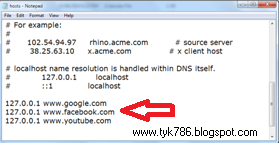
Step 2: Open "hosts" file in notepad as shown in Figure1 below.
www.tyk786.blogspot.com
Figure 1


Step 3: At the end of the notepad enter 127.0.0.1 then give a space and enter the URL of the website which you want to block. You can block as many websites as you want. Example
127.0.0.1 www.twitter.com
127.0.0.1 www.facebook.com
127.0.0.1 www.youtube.com
127.0.0.1 www.yahoo.com  (See figure2)
www.tyk786.blogspot.com
Figure2
Step 4: Save the file.

Congratulations......

All the websites which you entered in the file are now blocked. If you want to unblock any of these websites, just delete its address from the host file.

Done...!!!


Any questions? Leave a comment....!!!
Happy Learning :)

Read More »

Download card works crack free

CardWorks (Business Card Software) helps you design and print your own business cards. Creating your own business cards is easy with a wide range of free business card templates. Supports all standard sizes of business cards. Print business cards yourself or export your business card files and have them professionally printed. 
 Popular features include:
  1. Large selection of business card templates to choose from. 
  2. Free additional template options available for download. 
  3. Single or double-sided card design options. 
  4. Names and addresses can be stored for multiple businesses. 
  5. Include images, logo, self-picture, etc.,with multiple formats supported (gif, jpg, png and bmp). 
Export high resolution PDFs to take to your local printer.

Free version has watermark on all business cards. To remove the watermark you must upgrade to the paid version.


Download CardWorks here

Buy this software from the developers so that they can make more good software for us. 
☺☺☺☺
Read More »

Jan 27, 2017

How to add popular posts widget in blogger

Popular Posts widget is a must have for a blog or  website An eye-catching popular post widget not only increases the beauty and style of your website/Blog but it will impress your readers also. This will also increase the chance to get more clicks in your blog. today we will learn about how to add a Popular Posts widget in your blog. Adding and customizing popular post is very easy. 
Just follow the steps below-

Step 1- Login to your Blogger account and go to Layout as shown in Fig 1.
Fig 1

Step 2-  Click "Add a gadget" as shown in fig 2 below.
Fig 2
Step 3- A pop up box will open, select "Popular posts" widget from it as shown in Fig3 below.
Fig 3
Step 4- Now configure your Popular posts Widget as shown in fig 4 below.

Fig 4
Customization:-
1- Name you like to display in your  blog for popular posts widget. Rename it according to your taste.
2- The time period you want blogger to choose posts from. You can choose any but All time is recommended.

3- How many posts you like to display in popular posts widget (Max 10). Check Image thumbnail to show images.

4Save your popular posts Gadget.

Step 4- At last click Save arrangement at top right corner as in fig 5
Fig 5
Hurray.....! You have successfully added popular posts widget to your blog.
Congratulations.
HAPPY LEARNING ☺☺☺


Read More »
Blogger Widgets